

Welcome to the Terminal
As we covered in the video, the terminal is your gateway to the most powerful tools in bug bounty. This chapter is a hands-on primer designed to make you confident and efficient with the command line, focusing only on the terminal itself - the tools will come later.
The terminal allows you to interact with your computer directly using text commands. It might look simple, but it's incredibly powerful.
We'll learn the most important commands by performing a real task, setting up an organized workspace for this course.
This is the time to open your terminal and follow along.

Navigating Your Filesystem
First, let's get comfortable moving around. You can make a new directory with the mkdir command
mkdir {folder-name}
mkdir bug-bounty-masterclass
To move into the folder you just created, you'll use the cd command, which stands for "change directory".
cd {folder-name}
cd bug-bounty-masterclass
You don't need to learn hundreds of commands. For now, focus on mastering just these five.
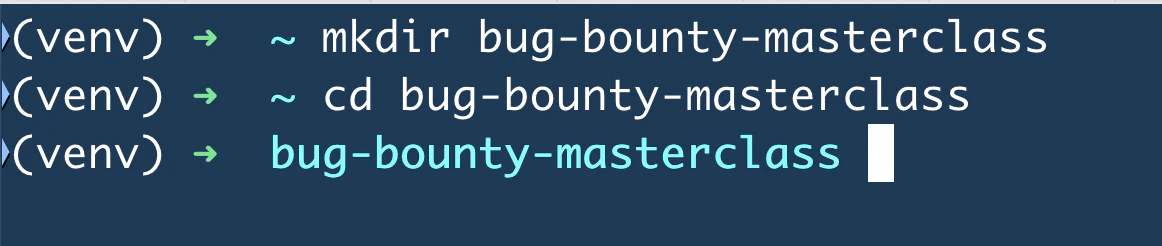
Now that you're inside, you can create some sub-folders for a future hunting mission
mkdir wiz.io {Create a sub-folder named wiz.io}

cd wiz.io {Navigate to the new sub-folder}

mkdir recon notes {Create sub-folders in the sub-folder}
If you ever feel lost and want to know exactly where you are, the pwd command will print your current directory's full path
pwdTo see what's inside your current location, the ls command will list all files and directories in detail.
ls -la
To go back up one level to the parent folder, you can always use the cd command
cd {target directory}
cd .. {move one directory up}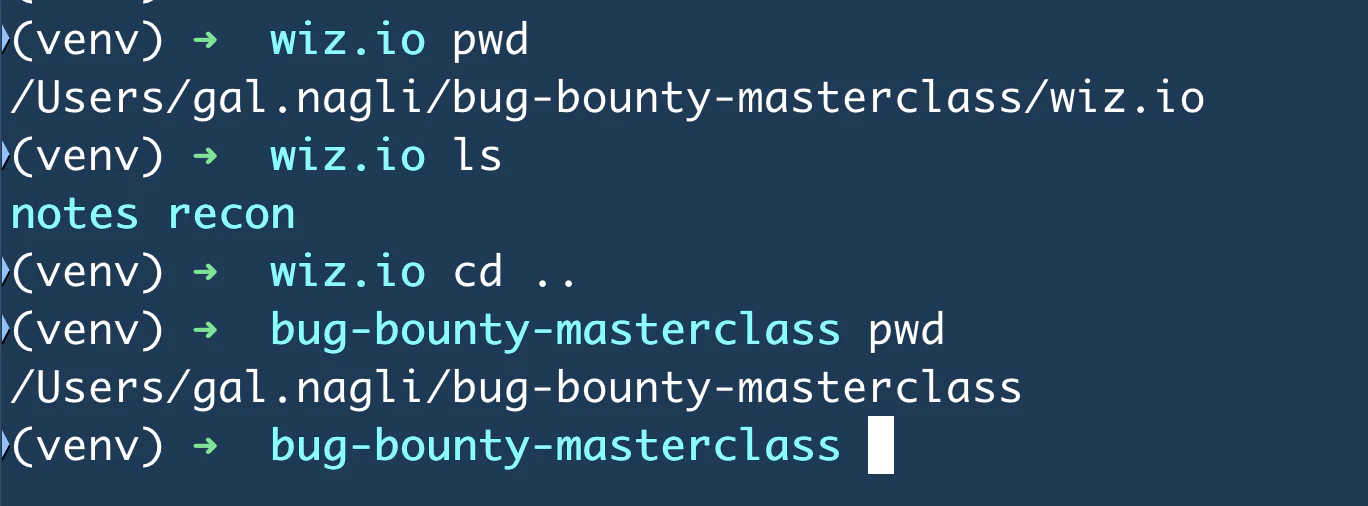
Creating and Editing files
Now we can move on to creating and editing files. Let's navigate into our notes directory to start
cd notes
or cd wiz.io/notes (if you went one directory up with the cd .. command)
------------------
You can always use the "TAB" button on your keyboard that will suggest auto-complete
the directory / file name, for example - cd n {TAB Press}
To create and edit new files, I suggest using the "nano" cmmand
nano notes.txtThis will open a new screen and create a notes.txt file within the directory, type a few lines, then press Ctrl+O and Enter to save, and Ctrl+X to exit.
Viewing and Organizing Files
Once you have files, you'll need ways of viewing and organizing them. You can display a file's entire content with the cat command.
cat {file-name}
cat notes.txt
To make a copy of a file, use the cp command. To move or rename a file, use mv
cp notes.txt notes2.txt
mv notes2.txt final-notes.txt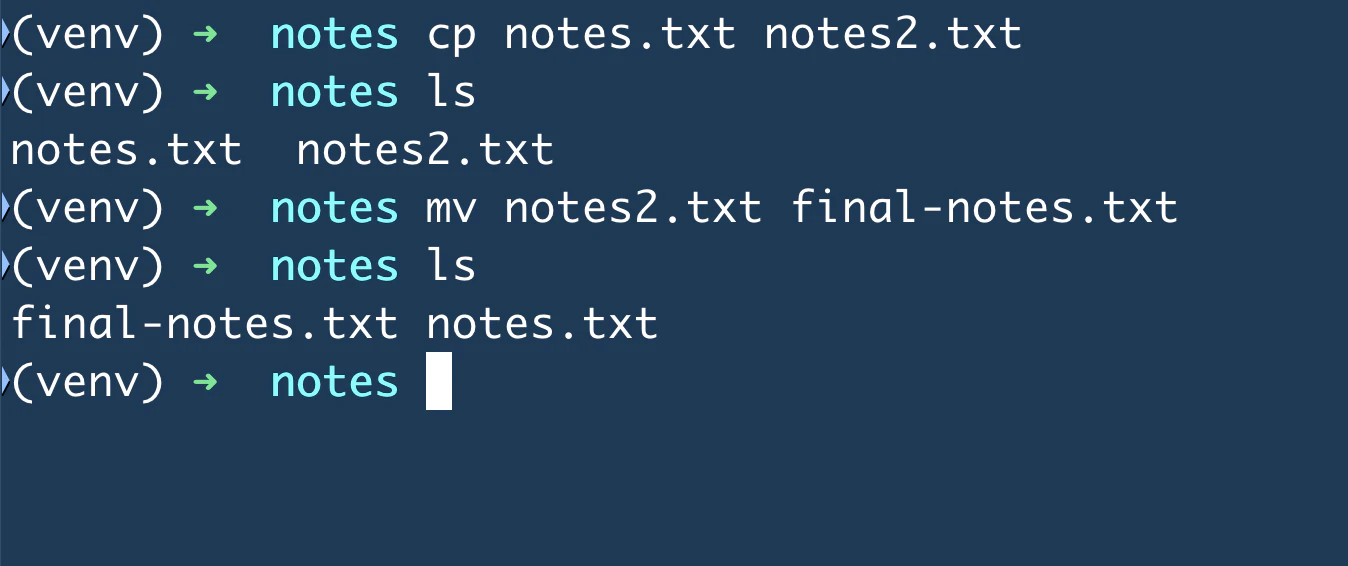
Searching and Chaining Commands
The real magic of the terminal comes from searching and chaining commands to manage data. You can save the output of any command to a file using the output redirection operator > or the tee command, which also shows the contents of your command to the stdout (your screen)
ls > file_contents.txt
cat notes.txt | tee notes-backup.txt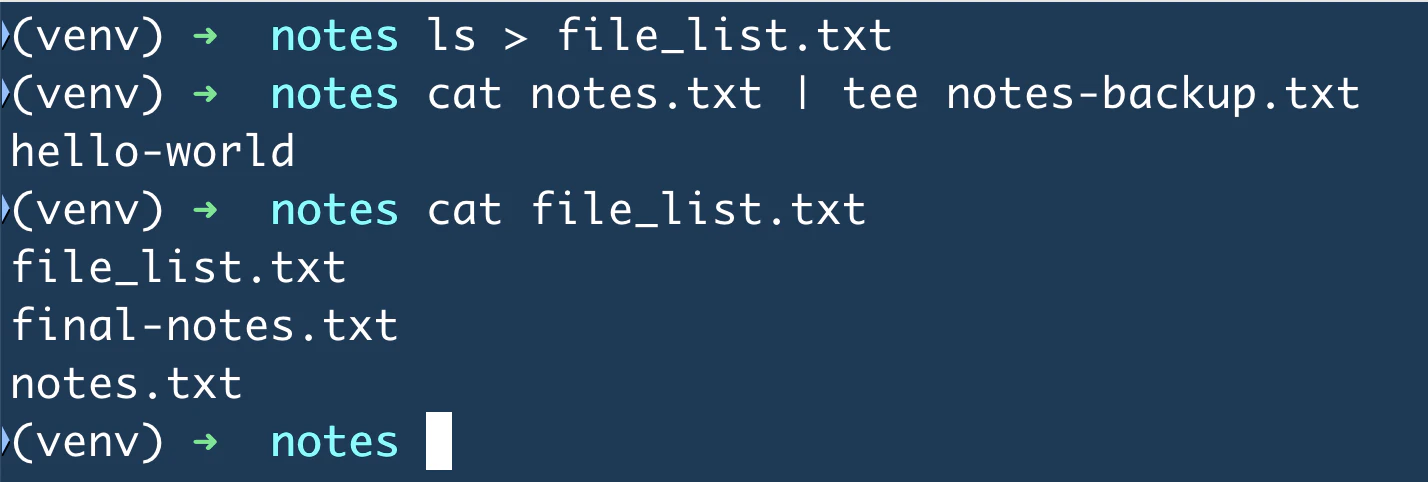
The most powerful technique is using the pipe | character, the pipe acts like a conveyor belt, taking the output of the command on the left and using it as the input for the command on the right.
Let's see it in action with grep, a command to search for text (that you'll use many times)
cat notes.txt | grep "hello"
Sometimes, our files will be huge with a lot of content - for that reason we can use the head command, where we can specify the number of rows we want to check from a given file
cat {file-name} | head -n {number-of-lines}
cat notes.txt | head -n 1 (Show me only the first line from my notes.txt file)
Besides the pipe |, you'll often see the AND && operator - this is used for command flow, it simply runs the next command after the first one finishes successfully. It's great for simple, sequential scripts.
mkdir new-folder && cd new-folder
(create "new-folder" and then navigate to it by changing directory)
Keeping Your Sessions Alive with tmux
When you're running long recon scans or working on a remote server, losing your terminal session can mean losing hours of work. That's where tmux comes in - it keeps your sessions running even if you close your terminal or lose connection.
tmux new -s huntingThis creates a new session called "hunting." You can now run tools, and even if you disconnect, everything keeps running in the background.

To detach from a session (leave it running), press Ctrl+B, then D.
To reattach later:
tmux attach -t huntingTo see all your running sessions:
tmux lsPro tip: When running long subdomain enumeration or port scans, always run them inside tmux. You'll thank yourself later.
Essential Shortcuts
As you work, a few essential shortcuts will save you a massive amount of time, when typing a file or directory name, always press the Tab key (as mentioned above) to autocomplete it. To stop any command that is stuck or running too long, press Ctrl+C.
If you want to find a command you used in the past, press Ctrl+R to search your history.
In the next chapter, we'll cover "Web Application Basics." we want to understand how our future targets are built, So we'll know how to break them 😉
Fun Quiz
